Beds24 Integration Help
Overview
This integration imports reservations from the property management service Beds24 into UnlockOS and issues a key (unlock code and QR) and a check-in URL for each one. Bookings from Booking.com, Airbnb, Expedia and other channels come through as long as they are in Beds24.
This page walks through the Beds24 side, the UnlockOS settings, checking that it works, and what to know when running it. Work in this order: Beds24 → UnlockOS → check it works.
What it does
| Sync mode | What happens |
|---|---|
| 1Way (Import only) | Beds24 reservations are imported into UnlockOS. Keys and check-in URLs are used inside UnlockOS only |
| 2Way (Import + PIN push) | In addition, the issued key and check-in URL are written back to the Beds24 reservation, so you can send them to guests from Beds24 (for example with its messaging) |
We recommend starting with 1Way to confirm the import, then switching to 2Way.
What you need
- A Beds24 account (a trial account can connect)
- Rooms registered in UnlockOS, and a key for each room (a smart lock such as KEYVOX)
- Access to App Integration in the UnlockOS admin
The screenshots on this page show the Japanese UI. The English screen has the same layout.
1. Create a Beds24 account
If you already use Beds24, skip to "2. Check the property and rooms".
- Open
https://beds24.com/join.htmland fill in the form (Create your account). - Tick "I am a commercial or business user", review the terms, and press Join now.
- Your password is sent to the email address you registered. The first login also asks for a login code sent by email.
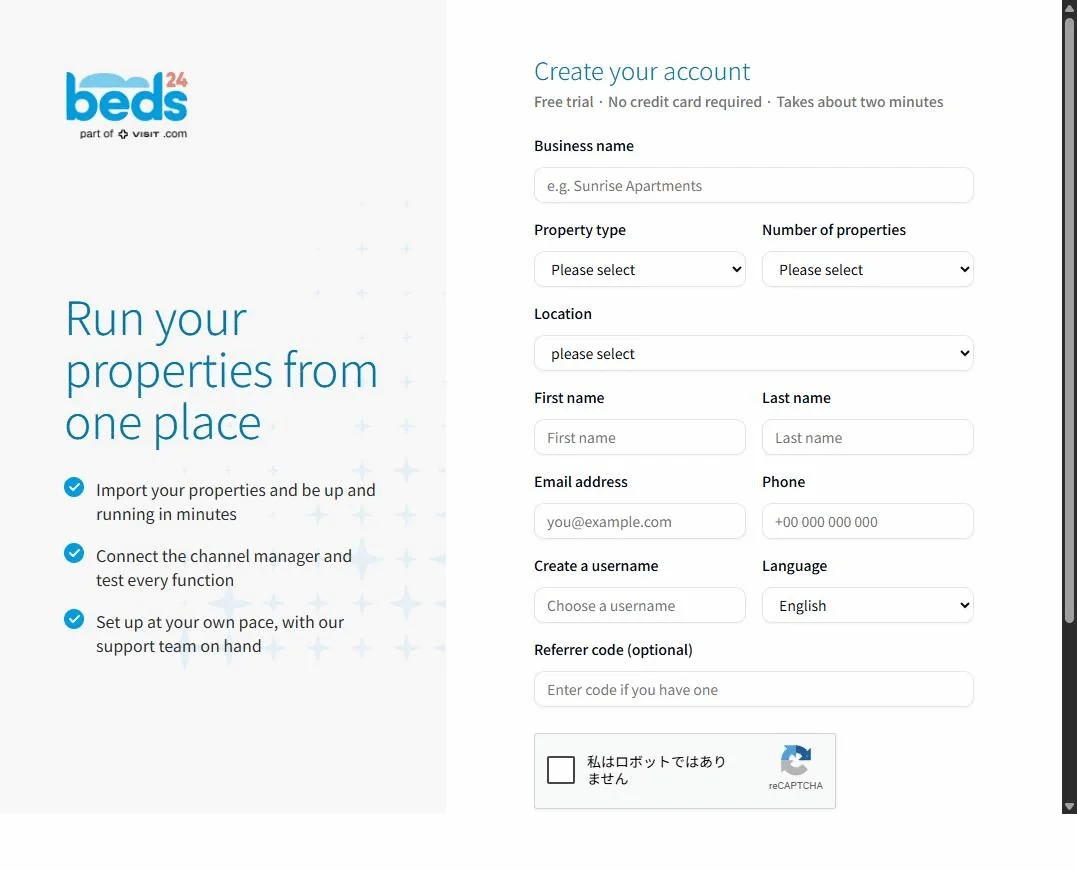
| Field | What to enter | Note |
|---|---|---|
| Business name | Your property or business name | You can change it later |
| Property type | The kind of property (Hotel, etc.) | |
| Number of properties | How many properties you have | |
| Location | Your country | Sets the property's time zone |
| First name / Last name | The contact person's name | |
| Email address | A business address you can receive mail at | The password and login code are sent here |
| Phone | A contact number | |
| Create a username | Any login ID | |
| Language | English | The Beds24 admin is in English or German |
| Referrer code | Leave blank |
After the first login you are asked to complete your business details (Please complete your business details). Enter your address and save. The language settings and the getting-started screen can be closed as they are.
2. Check the property and rooms
The UnlockOS settings use the Beds24 property ID.
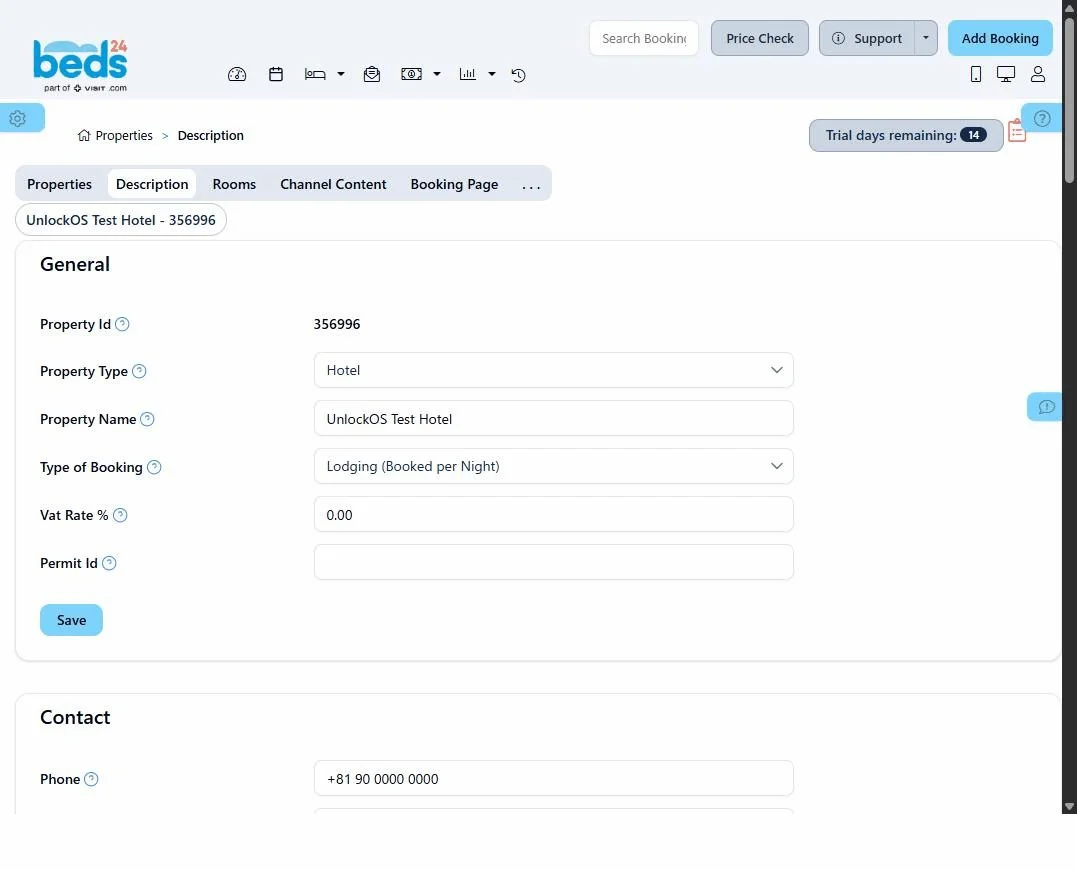
- Open Settings (the gear, top left) → Properties.
- If you have no property yet, create one with Add New Property. Creating a property also creates one room (Room 1).
- Note the number in Property Id on the Description tab. That is the property ID.
- Check the room list on the Rooms tab. You will link these rooms to UnlockOS rooms later.
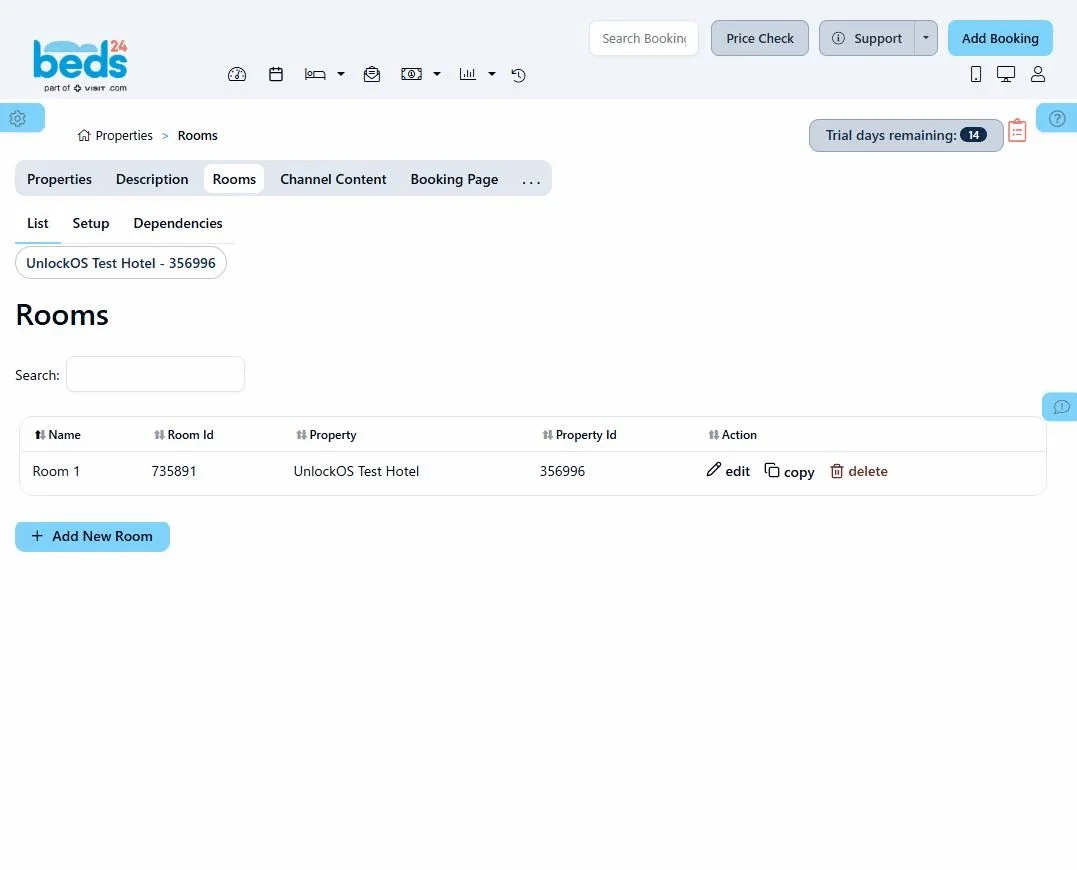
One connection covers one property. If you have several properties in Beds24, create one UnlockOS connection per property.
3. Generate an invite code
To connect an outside service to the Beds24 API (API V2), you first generate an invite code.
- Open Settings (the gear, top left) → Marketplace → API (or open
https://beds24.com/control3.php?pagetype=apiv2directly). - Press Generate invite code.
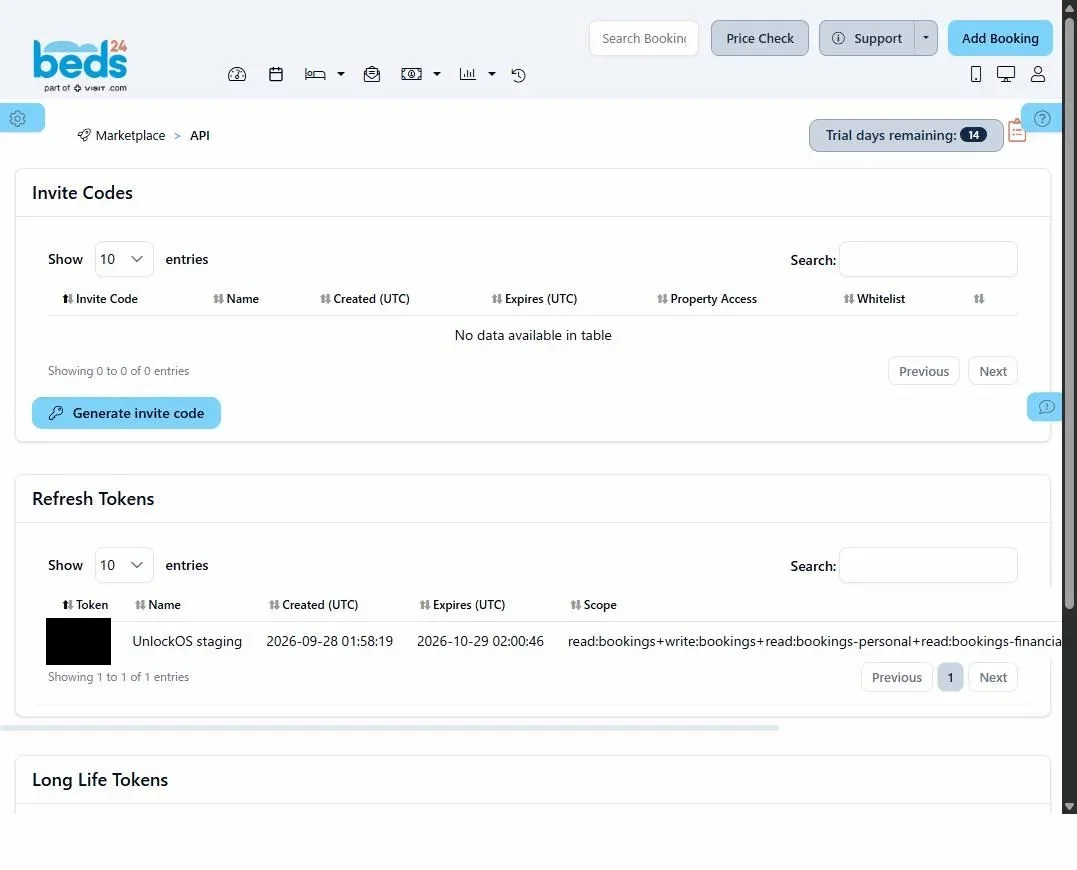
- On the scope screen, tick these five boxes.
| scope | READ | WRITE | Used by UnlockOS for |
|---|---|---|---|
| bookings | ✓ | ✓ | Reading reservations. In 2Way, writing the key and check-in URL into the reservation |
| bookings-personal | ✓ | Guest name, email and phone | |
| bookings-financial | ✓ | Reservation amounts | |
| properties | ✓ | The property and room list (used for room mapping) |
- Leave "Select which properties this token can access" as All owned by account, leave the IP whitelist blank, give it a clear name (for example
UnlockOS), and press Generate invite code at the bottom right.
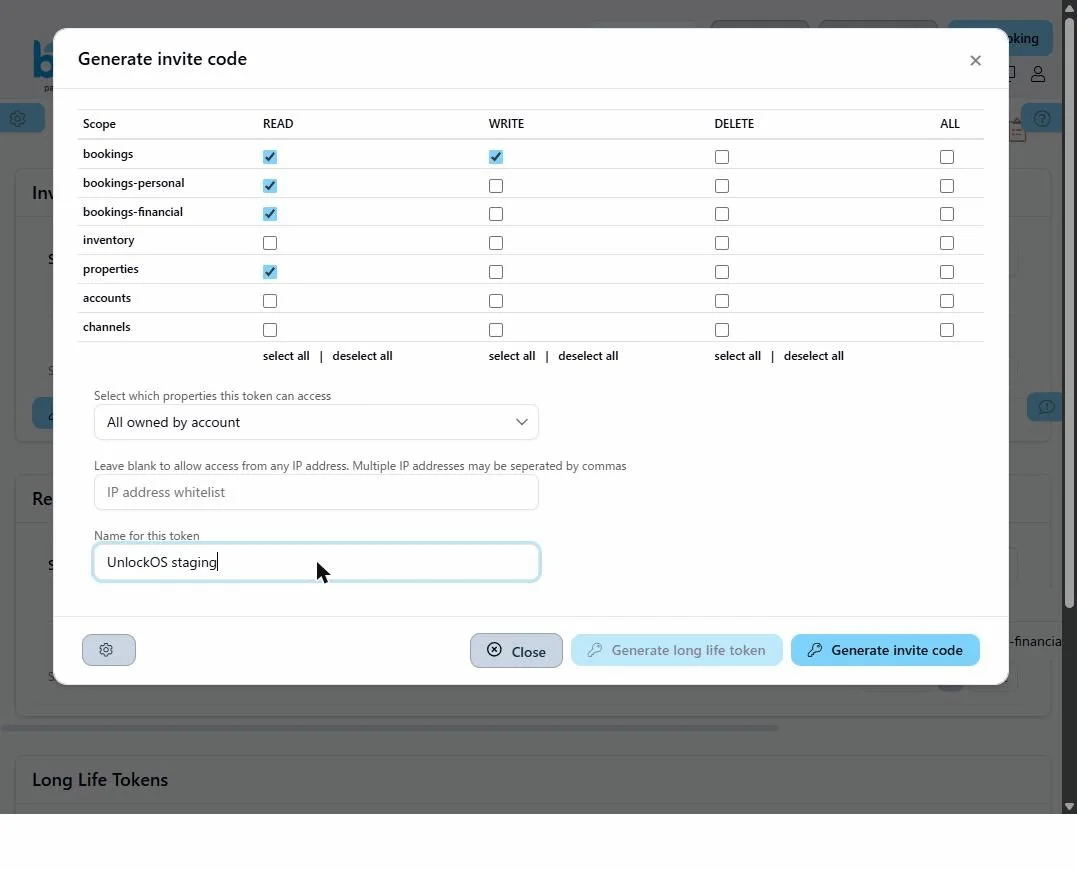
Scopes cannot be changed afterwards. Even if you only plan to use 1Way, tick WRITE for bookings from the start. Then switching to 2Way later does not mean starting again from a new invite code.
An invite code expires after 24 hours. Finish "4. Exchange it for a refresh token" on the same day.
4. Exchange it for a refresh token
What you register in UnlockOS is not the invite code but a refresh token. Exchange the invite code on the Beds24 API page (Swagger UI).
- Open
https://beds24.com/api/v2/. - Under Authentication, open GET /authentication/setup and press Try it out.
- Paste the invite code into the code field. deviceName can stay blank.
- Press Execute and check that the Server response code is 200.
- The Response body lists three items:
token,expiresInandrefreshToken. Copy the value of the third one,refreshToken, without the surrounding quotes (").
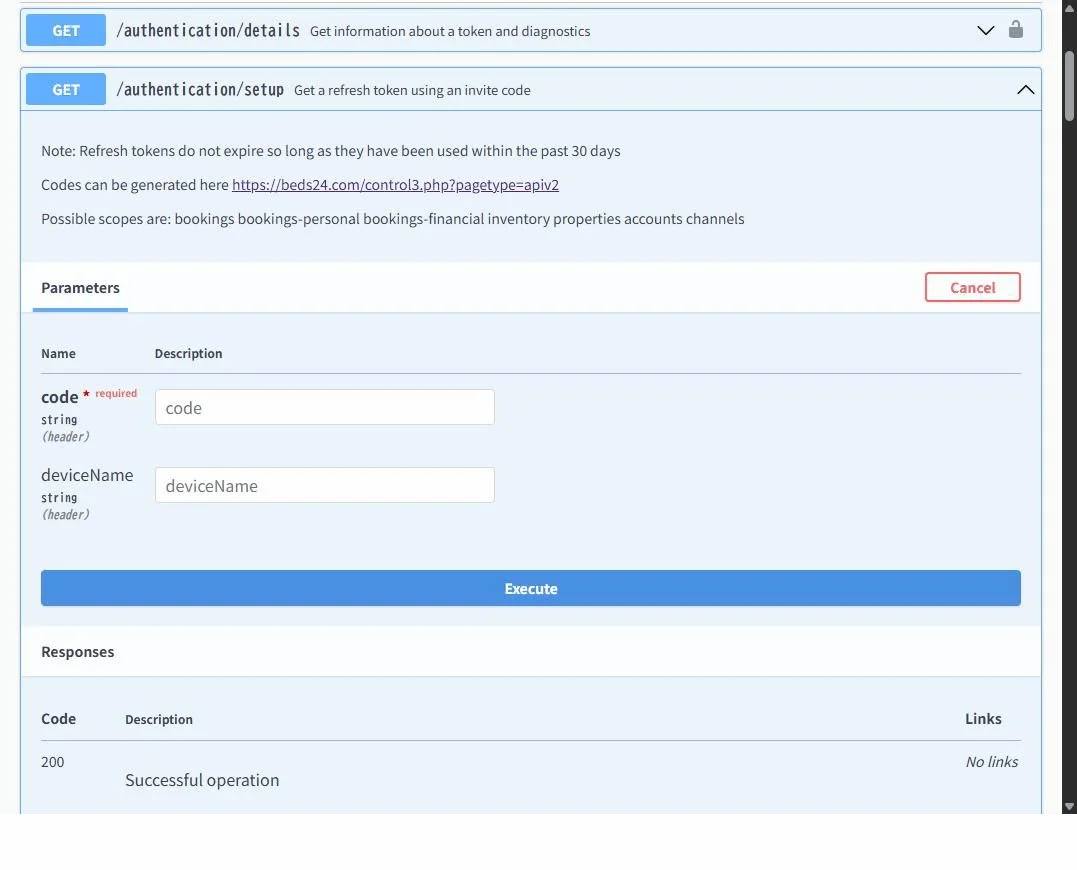
Do not mix them up. The first item, token, is a temporary key that expires after 24 hours. If you enter it in UnlockOS, the connection breaks the next day. Always copy refreshToken.
- After the exchange, one row is added under Refresh Tokens on the API screen.
- A refresh token expires if it is not used for 30 days. As long as UnlockOS keeps syncing, it does not expire.
- The invite code and refresh token are real access to your Beds24 account. Do not paste them into chats or shared documents; paste them straight into the UnlockOS field, then close the tab that still shows the token.
5. Connect in UnlockOS
- In the left menu, open App Integration → the Integrations tab, and open the Beds24 card (or "Connect" if it is not connected yet).
- Enter the following.
| Field | What to enter |
|---|---|
| Property ID | The Property Id you noted in "2. Check the property and rooms" |
| Sync Mode | 1Way (Import only) to begin with |
| Refresh token | The value you copied in "4. Exchange it for a refresh token" |
| Check-in ownership | Check in on UnlockOS (recommended) (already selected for new connections) |
- Press Save, then Test Connection. "Connection successful" means authentication works.
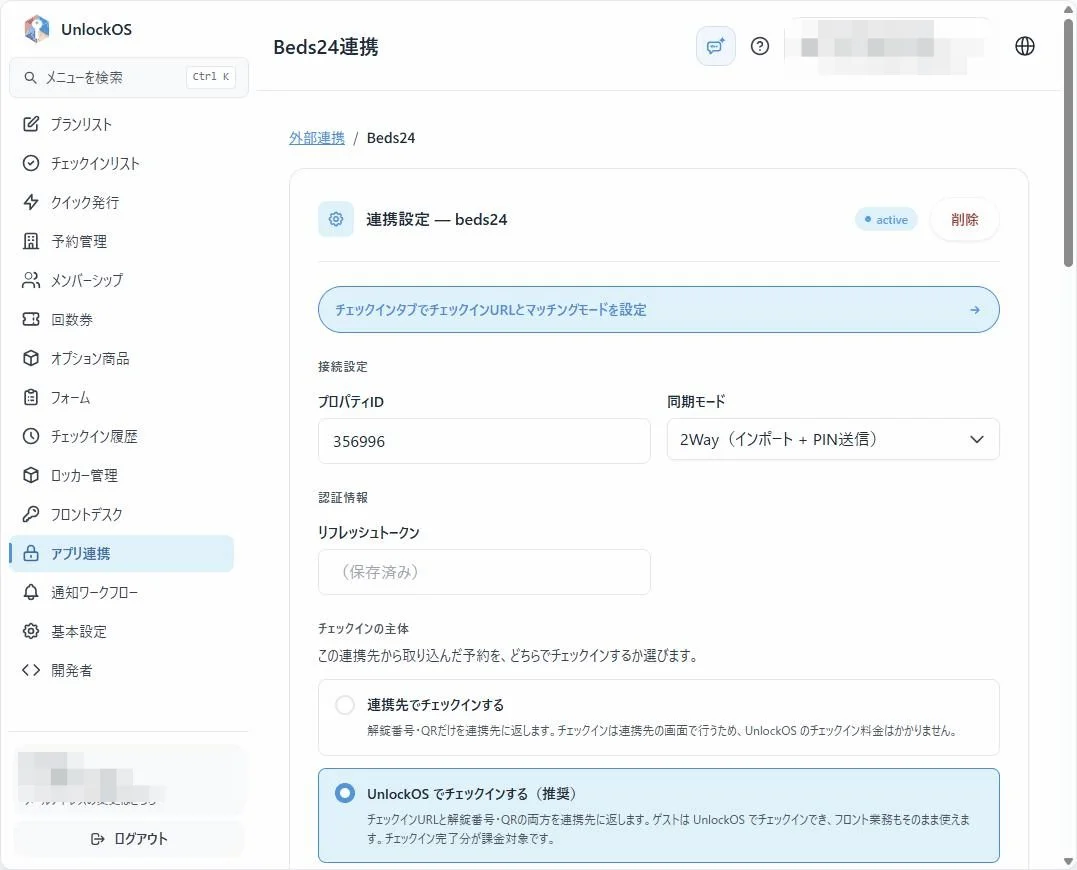
- After saving, the refresh token field shows "(saved)". Saving again with the field empty does not erase the saved value.
- The three check-in ownership options differ in what is written back to Beds24 and where the guest checks in:
| Option | Written back to Beds24 | Where the guest checks in |
|---|---|---|
| Check in on the provider | Unlock code and QR only | The provider side (no UnlockOS check-in charge) |
| Check in on UnlockOS (recommended) | Check-in URL + unlock code and QR | UnlockOS (completed check-ins are billable) |
| Check in on UnlockOS (URL only) | Check-in URL only | UnlockOS. Stops guests who already have the code from skipping check-in |
6. Map rooms and enable the connection
Right after the connection test, nothing is imported yet. Map the rooms first, then enable.
- Under Room Mappings near the bottom, press Fetch Rooms from Provider. The Beds24 rooms are listed.
- In each row, choose the matching room under UnlockOS Room.
- Press Save Mappings.
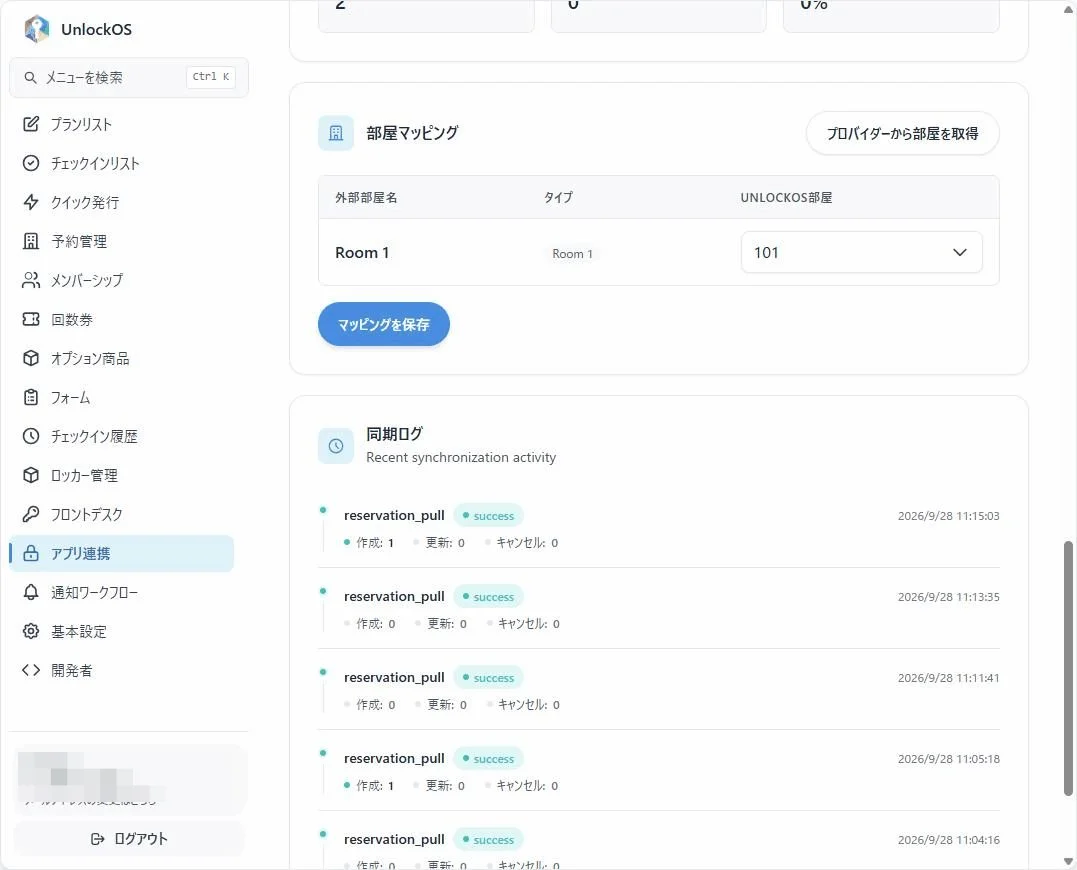
- Back at the top, turn on Enabled (Enable automatic synchronization) and press Save. The status changes to
activeand scheduled syncing starts.
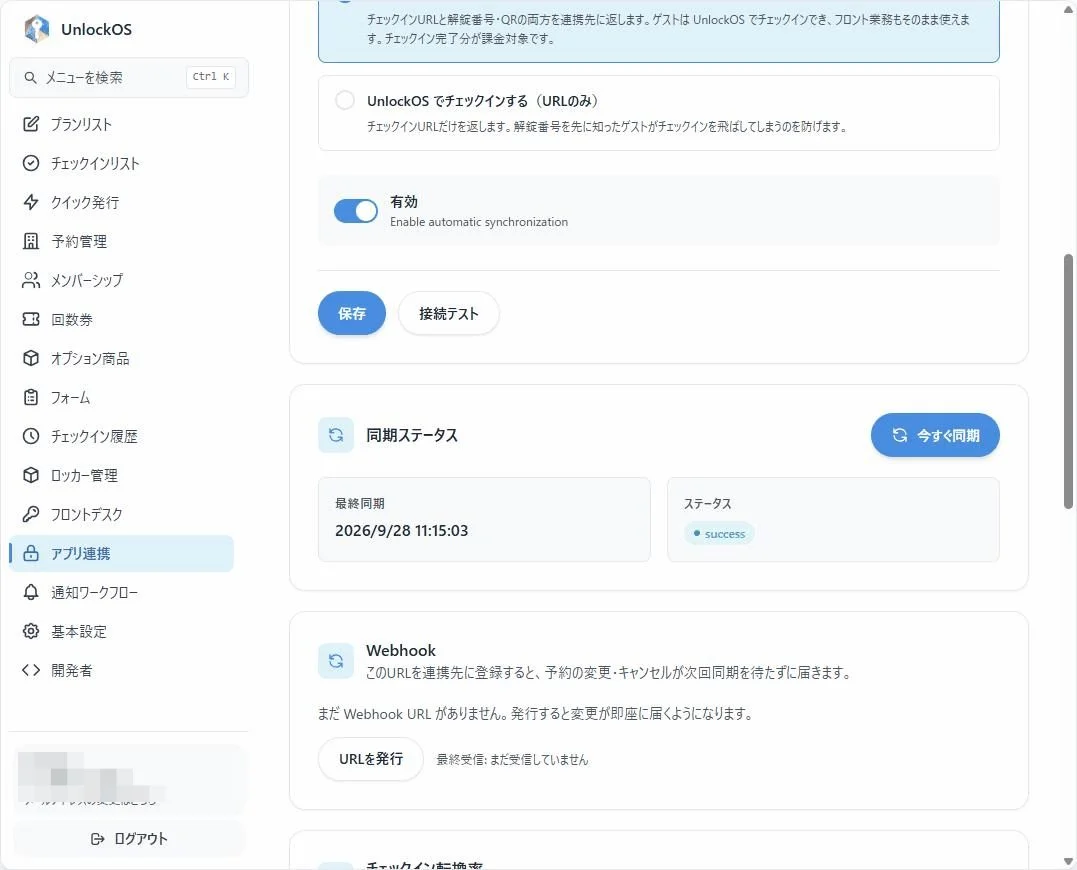
Room mapping is required for keys. Reservations for unmapped rooms are still imported, but no key is issued for them.
7. Check that it works
Reservations are imported
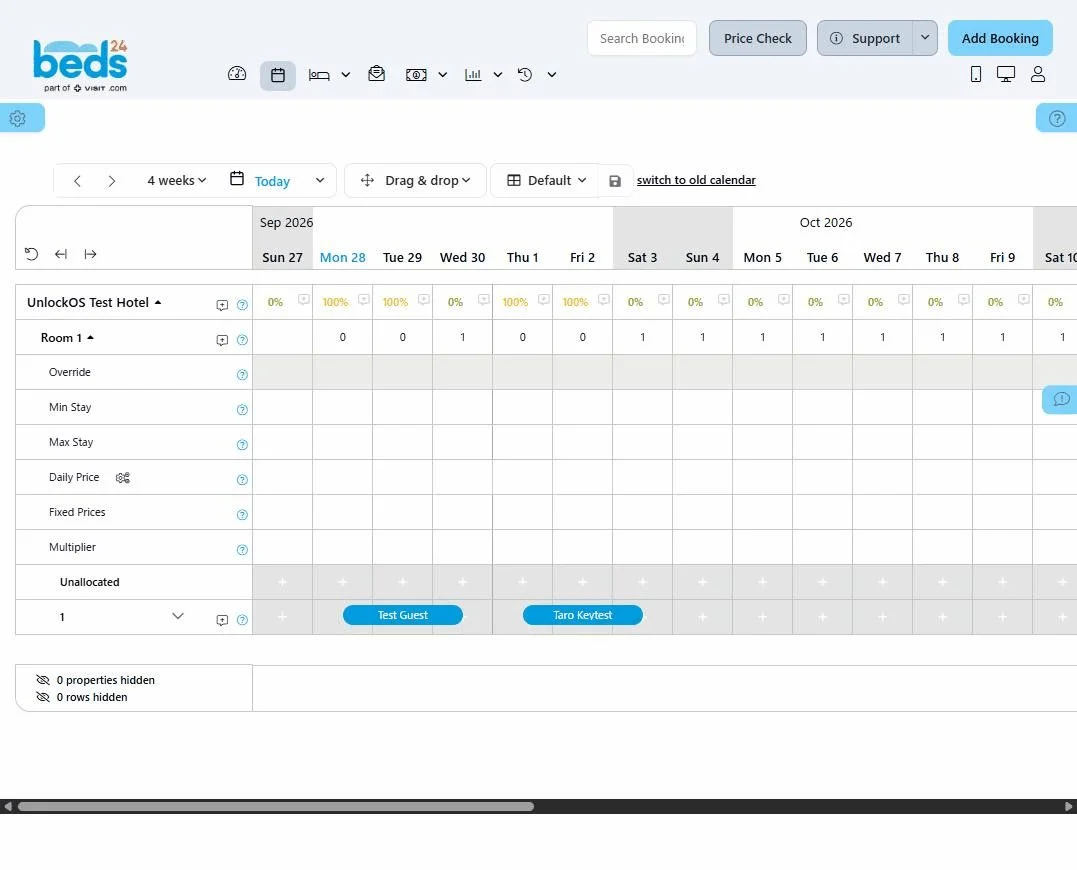
- In Beds24, press the calendar icon at the top and press an empty day (or Add Booking at the top right).
- Enter the room, dates, price and guest name.
- Press Continue at the very bottom of the form to confirm the booking. A booking number is assigned.
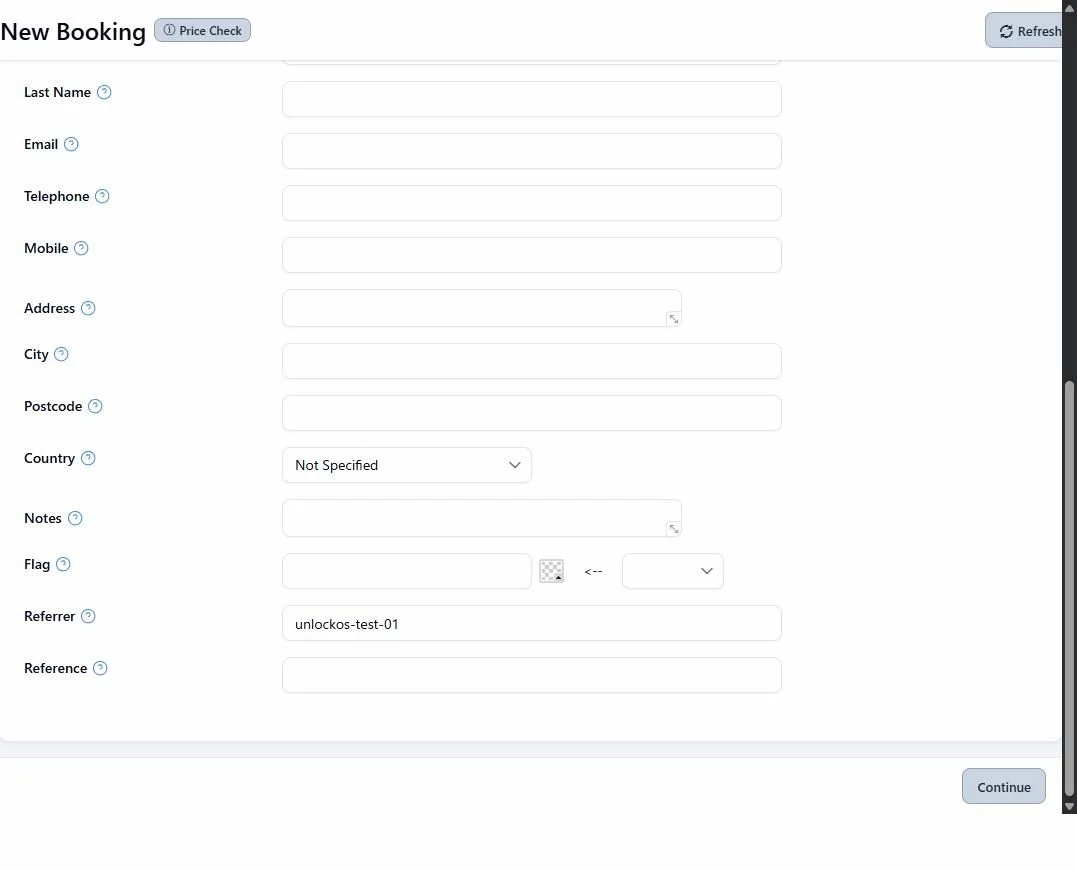
Save at the top of the form does not create the booking. Always press Continue at the bottom.
- In the UnlockOS integration settings, press Sync Now. A
reservation_pullentry appears in the Sync Log; "Created: 1" means the reservation was imported. Imported reservations also appear on the UnlockOS reservation calendar.
Keys are written back (2Way)
- In the UnlockOS integration settings, change Sync Mode to 2Way (Import + PIN push) and save.
- Create a new booking in Beds24, or edit and save an existing one, then press Sync Now in UnlockOS.
- Open the booking in Beds24 and look at the Info tab. It works if these three items written by UnlockOS are listed.
| Item | Content |
|---|---|
| CHECKINURL | The URL where the guest checks in on UnlockOS (includes the reservation ID and check-in / check-out dates) |
| QR | The value of the unlock QR code |
| PIN | The unlock code |
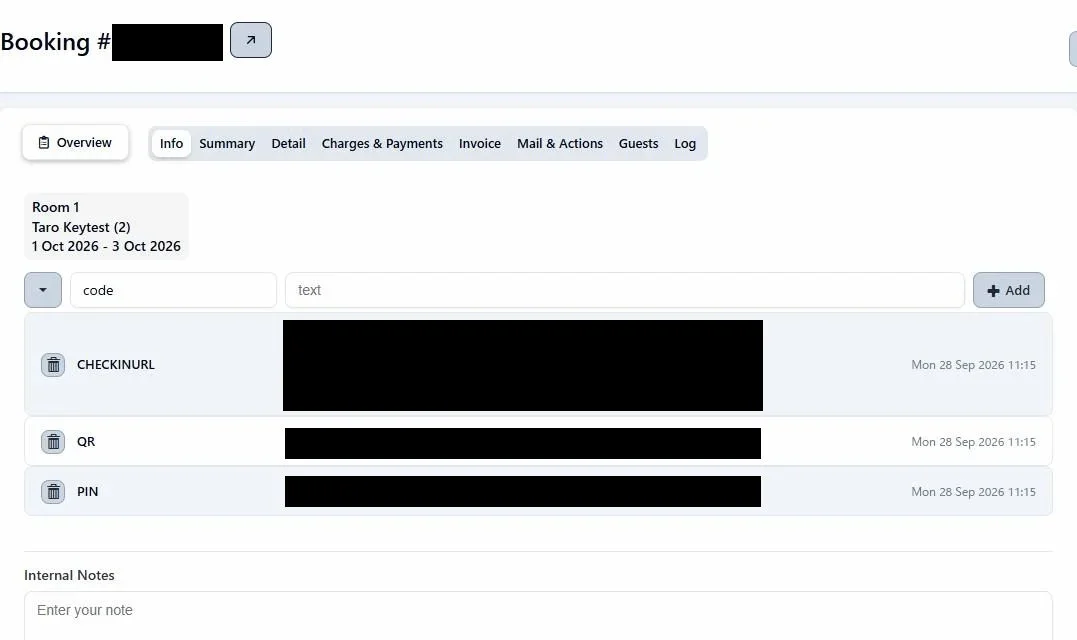
If check-in ownership is "Check in on UnlockOS (URL only)", only CHECKINURL is written back. If it is "Check in on the provider", only QR and PIN are written back.
8. Register the webhook (recommended)
With a webhook, bookings created, changed or cancelled in Beds24 reach UnlockOS right away instead of waiting for the next scheduled sync.
- In the Webhook section of the UnlockOS integration settings, press Issue URL and copy the URL.
- In Beds24, open Settings (gear) → Properties → Access, paste the URL into Booking Webhook, and save.
- Change one booking in Beds24 and check that Last received under Webhook in UnlockOS updates.
- Without a webhook, reservations are still imported by the scheduled sync; changes just arrive one sync interval later.
- Reissuing the URL stops the old one immediately. After reissuing, replace the URL registered in Beds24 as well.
- The webhook URL contains its own secret. Do not share it.
Running it day to day
When syncing happens
- The scheduled sync runs about every 15 minutes. With a webhook, changes arrive almost immediately.
- When you are in a hurry, press Sync Now in the integration settings.
- UnlockOS imports only the reservations changed since the previous sync. So reservations imported in 1Way do not get keys written back just because you switched to 2Way. To write back to an existing reservation, open it in Beds24, change any one field (such as Reference), save, and wait for the next sync.
Check-in and check-out times follow Beds24
The times of an imported reservation are decided by Beds24.
| Time | How it is set |
|---|---|
| Check-in (start) | The reservation's Arrival Time in Beds24. If it is blank, the Check-in Time under Front Desk → Default Time Settings in UnlockOS |
| Check-out (end) | Always the Check-out Time under Front Desk → Default Time Settings in UnlockOS (Beds24 has no check-out time field) |
- For an early check-in, enter a time in the reservation's Arrival Time in Beds24.
- You can change the times in UnlockOS's reservation editor, but every time the reservation is edited in Beds24, the Beds24 content overwrites them (editing any field, not only Arrival Time). A late check-out works the same way: once the reservation is edited in Beds24, it goes back to the default check-out time.
- For a reservation whose times must stay, avoid editing it in Beds24 afterwards, or correct it in UnlockOS right after the Beds24 edit.
When a reservation is changed in Beds24 after check-in
Even if you extend a stay, change the number of guests or move rooms in Beds24 after check-in, the UnlockOS reservation stays checked in. Date and room changes are applied, and the key follows them. Check-out works as usual.
When a reservation is cancelled in Beds24
- The UnlockOS reservation is cancelled and its key is revoked.
- If the guest is still staying (checked in), the cancellation is held until the stay ends (so the room is not shown as free and double-booked).
- A completed stay stays "completed" even if it is cancelled in Beds24 afterwards.
Watch out for double bookings
Beds24 does not know about reservations created directly in UnlockOS's reservation management. So the same room on the same dates can still be sold on Beds24 (or a channel connected to Beds24).
- An overlapping Beds24 reservation is not imported into UnlockOS. It does not appear in the check-in URL search and no key is issued.
- For now, the only place this shows is the Sync Log in the integration settings.
- For rooms connected to Beds24, we recommend taking bookings only through Beds24. If you add a reservation directly in UnlockOS, close those dates for sale in Beds24 as well.
Guest names and searching from the check-in URL
- UnlockOS shows the guest name of a Beds24 reservation as "last name first name" (for example
Johnson Emily). - When a guest searches for their reservation by name from the check-in URL, differences in name order, spaces and full-width spaces are tolerated (for example, a reservation for "Johnson Emily" is found with "Emily Johnson").
- Part of a name also works, but a single character does not. Several missed searches in a short time block searching for a while.
FAQ
Q: The connection test says "Connection failed"
A: Check the following.
- The refresh token field contains the
refreshTokenvalue (nottoken, and no leftover quotes) - The property ID matches the Property Id in Beds24
- The invite code's scopes include READ for bookings and properties
To re-enter it, generate a new invite code on the Beds24 API screen and do the exchange again.
Q: The connection broke the next day
A: You may have entered the token value, which expires after 24 hours, instead of the refresh token. Enter the refreshToken again following "4. Exchange it for a refresh token".
Q: I created a booking in Beds24 but it is not imported
A: Check the following.
- You pressed Continue at the very bottom of the Beds24 booking form (Save at the top does not create the booking). If the booking shows on the Beds24 calendar, it exists
- The connection is Enabled
- There is no UnlockOS reservation for the same room and dates (overlapping bookings are not imported; check the sync log)
Q: The reservation was imported but no key was issued
A: Check that its room is linked to an UnlockOS room in Room Mappings. Reservations for unmapped rooms get no key.
Q: I switched to 2Way but nothing is written back to Beds24
A: Reservations imported before the switch are not written back automatically. Edit and save the reservation in Beds24 and it is written back on the next sync. New reservations are written back as soon as they are imported.
Q: I cannot find the save button when editing a booking in Beds24
A: On the edit screen of an existing booking, Save and Save and leave open are at the top right. If the browser window is narrow they can be off screen, so widen the window or scroll sideways. After saving, check the change on the calendar or the Detail tab.
Q: A check-in time I changed in UnlockOS went back
A: Times of imported reservations follow Beds24. When the reservation is edited in Beds24, its content overwrites the times. See "Check-in and check-out times follow Beds24" under "Running it day to day".