Special Dates & Seasons Help
Overview
Special Dates & Seasons lets you define your facility's own date classes — high season, Obon week, New Year's Eve and so on. Each class you create appears in every price plan as a rate tab (as a rate row on the Hourly Billing Plan), so you can charge a different price for those dates. A special date or season takes priority over holidays, weekends and days of the week.
A season's rate can be a single flat amount, or split by day type within the season. Both "high season is a flat 25,000" and "only high season Saturdays are 30,000, every other day stays normal" are possible (see "Splitting a season's rate by day type" below).
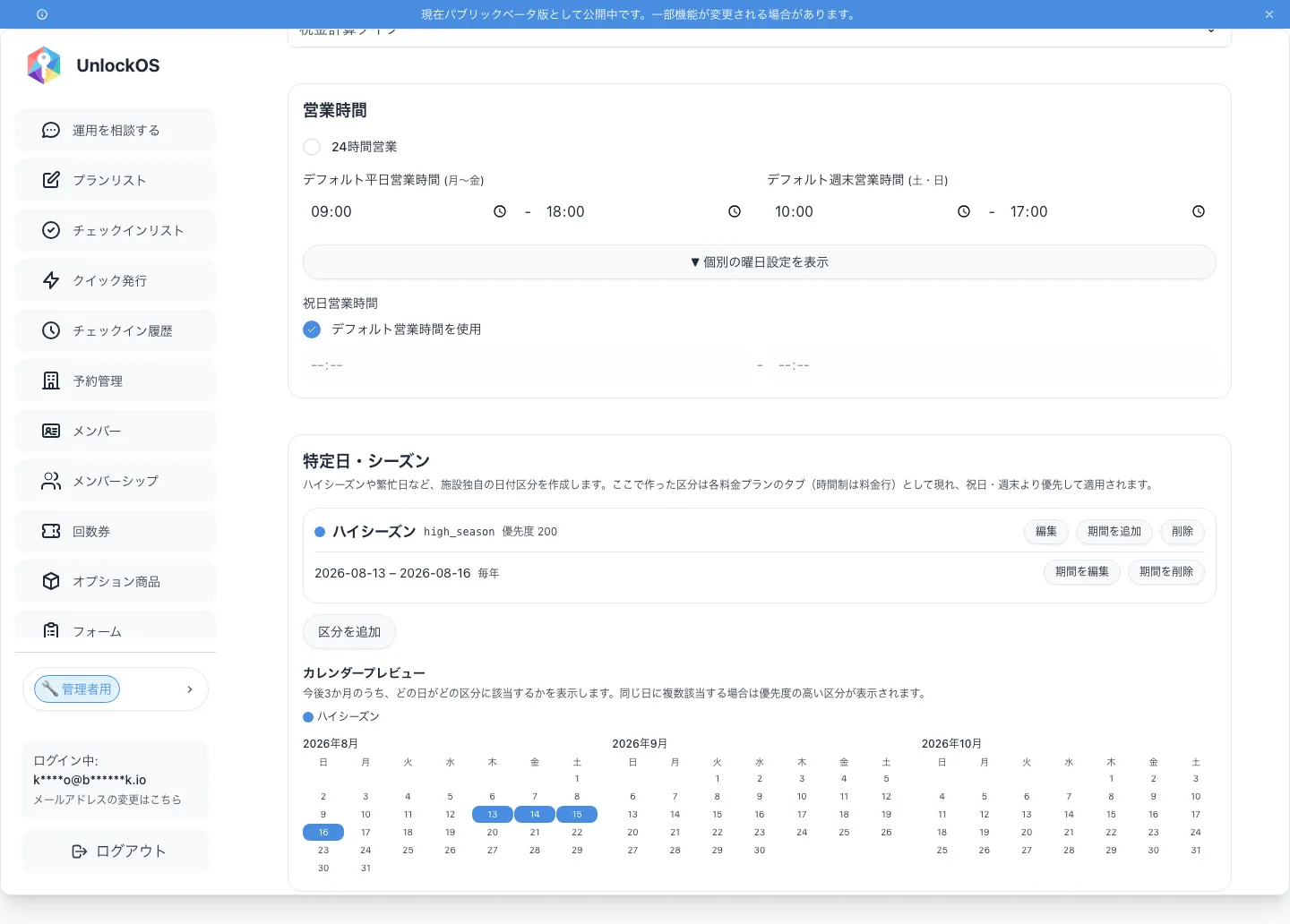
(Screenshots on this page show the Japanese interface.)
Main Features
- Create facility-specific date classes (high season, peak days, and so on)
- Define one or more periods per class, with yearly repeat and excluded dates
- Three-month calendar preview
- Per-class rates on every price plan (a rate tab on Accommodation, Daily Flat Rate, Fixed Time + Overtime, One-Time and Time Slot Booking plans; a per-minute rate row on the Hourly Billing Plan)
- Day-type rates inside a season (for example, charge more only on high season Saturdays)
- Priority above holidays and weekends
This feature is enabled per facility. If the Special Dates tab does not appear in Settings, the
ui_settings_date_tabfeature flag is off for that facility. Ask support to enable it.
Where to find it
Settings → the "Special Dates" tab.
Facility Owners and Organization Owners can edit it.
The same "Special Dates" tab also has Sales Blocks above this section. Special Dates & Seasons decides what to charge on a date; Sales Blocks decides whether to sell it at all.
This section has its own save buttons. The Save button at the bottom of the settings page does not save it. Save classes and periods individually with "Save class" and "Save period". They are deliberately separate so that a failure on one side can never leave you with a half-saved screen showing a success message.
Configuring a class
Click "Add class" to open the editor.
| Field | Description | Required |
|---|---|---|
| Key | The identifier that links the class to the rates you enter on each plan (e.g. high_season) |
Yes |
| Label | The name shown on screen and on the rate tab (e.g. High Season) | Yes |
| Priority | Integer from 1 to 1000. A higher number wins (default 100) | Yes |
Key rules
| Rule | Description |
|---|---|
| Allowed characters | Lowercase letters (a–z), digits (0–9), underscore (_) |
| First character | Must be a lowercase letter |
| Maximum length | 40 characters |
| Changing it | Cannot be changed after creation (the key is what ties the class to the rates entered on your plans) |
Reserved keys
The following keys are used by the built-in day types and cannot be used for your own class:
weekday / friday / saturday / sunday / weekend / holiday / dayBeforeHoliday
The key is the only field with a restricted character set. The label has a different restriction of its own (see below).
Labels cannot be duplicated within a facility
You cannot save a class whose label matches an existing (non-deleted) class in the same facility. The match is case-insensitive, so Obon and obon count as a duplicate. The label is the only thing that tells classes apart on the price plan screen — letting two classes share one would make it impossible to tell which tab's rate is which, and risks the wrong amount being entered. Saving a duplicate label shows an error naming the key of the class it collides with.
Configuring periods
Use "Add period" on a class to define which dates it covers. A class can hold several periods.
| Field | Description | Required |
|---|---|---|
| Start date | First date of the period | Yes |
| End date | Last date of the period (may be the same as the start date) | Yes |
| Repeat every year | Whether the same month and day repeat annually | No |
| Repeat until | The date the repetition stops (leave empty for no end) | No |
| Excluded dates | Dates inside the period that should not be included (several allowed) | No |
Things to know about periods
- A single period may not exceed 366 days. Split longer stretches into several periods
- Periods that cross the year boundary (for example 12/29–1/3) are supported, and "Repeat every year" works correctly for them
- A yearly repeat starting on 29 February falls back to 28 February in non-leap years (it does not roll forward to 1 March)
- A class with no periods never applies to any date (its rate tab still appears on your plans)
Calendar preview
The bottom of the section shows the next three months and colours each date by the class it belongs to.
- When several classes cover the same date, the date is shown in the colour of the highest-priority class
- The preview is produced by exactly the same logic that prices a booking, so what you see cannot drift from what you charge
- Hover a date to see the label of the class it belongs to
Setting the rates (on the price plan)
Once a class exists, every price plan editor gains an input for it.
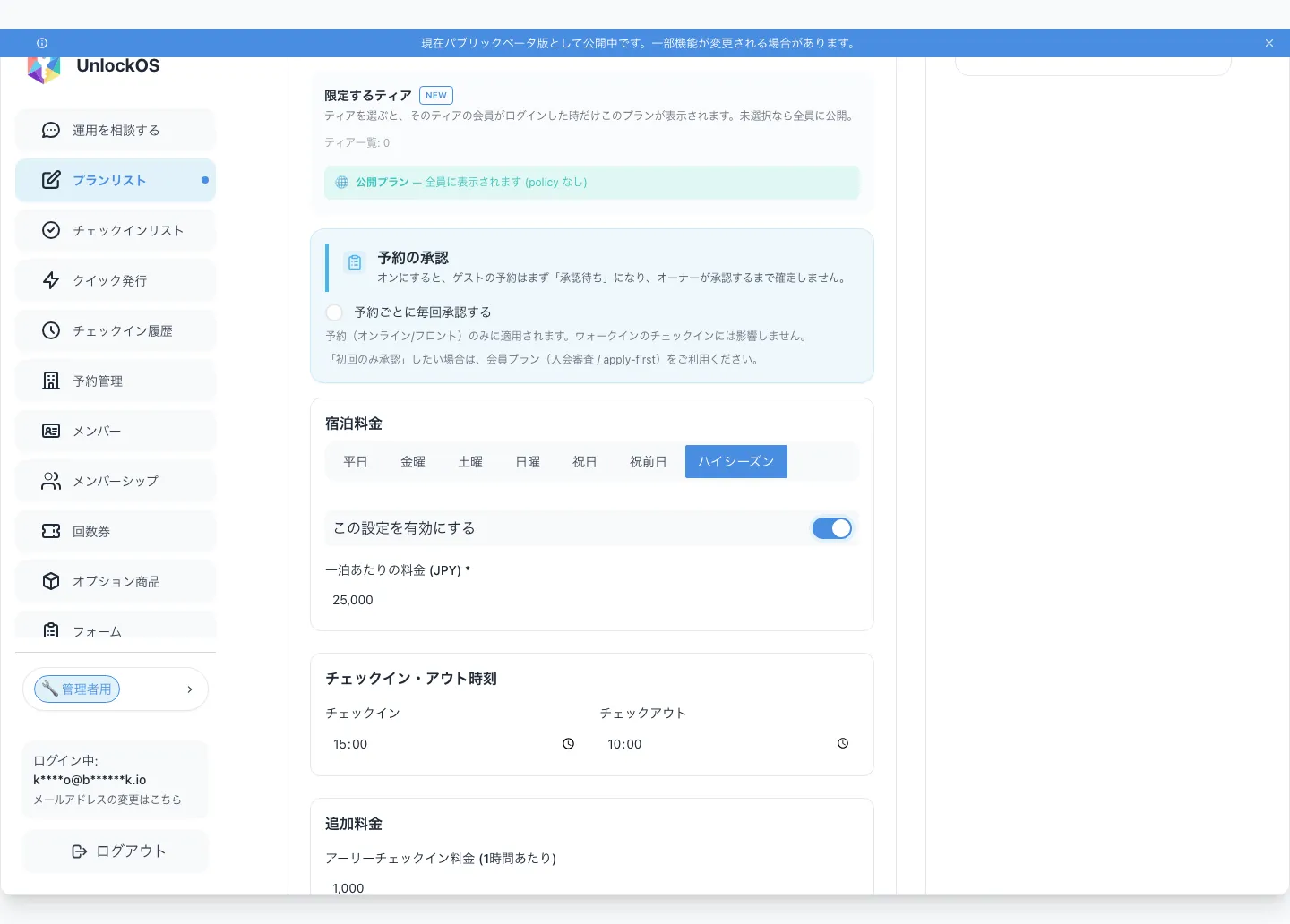
| Plan type | How to enter the per-class rate |
|---|---|
| Accommodation Plan | A class tab is added to the right of the day-type tabs (rate per night) |
| Daily Flat Rate Plan | A class tab is added to the right of the day-type tabs |
| Fixed Time + Overtime Plan | A class tab is added to the right of the day-type tabs |
| One-Time Plan | A class tab is added to the right of the day-type tabs |
| Time Slot Booking Plan | A class tab is added to the right of the day-type tabs (time slots and rates) |
| Hourly Billing Plan | No tab — a per-minute rate row per class is added under "Special date / season rates" |
Splitting a season's rate by day type
A season's rate can be one flat amount, or split by day type inside the season.
On the class's tab (the class's row on the Hourly Billing Plan), turn on "Split by day type". The tab then splits into an "All of <class>" sub-tab plus one sub-tab per day type, where you enter that season's own day-type rates.
The day types available depend on the plan type.
| Plan type | Day types |
|---|---|
| Accommodation Plan | Weekday, Friday, Saturday, Sunday, Holiday, Day Before Holiday |
| Daily Flat Rate / Fixed Time + Overtime / One-Time / Time Slot Booking / Hourly Billing | Weekday, Weekend, Holiday |
How a rate is chosen inside a season
For a date inside the season, the first rate found in this order is used.
- That day type's rate (for example, High Season Saturday)
- The "All of <class>" rate (the class's own rate)
- The ordinary day-of-week or holiday rate
| What you want | How to enter it |
|---|---|
| High season is a flat 25,000 | Leave "Split by day type" off and enter 25,000 as the class rate |
| High season is 25,000, but Saturdays are 30,000 | Turn it on, enter 25,000 under "All of…" and 30,000 under Saturday |
| Raise only high season Saturdays, leave every other day normal | Turn it on, fill in Saturday only, and leave "All of…" empty |
An empty field simply falls through to the next step. Leaving "All of…" empty and filling in only certain day types means the day types you skipped keep their normal rate. This is the most useful thing the split can do. Put an amount in "All of…" instead and every day type you skipped takes that amount.
⚠️ Turning "Split by day type" back off deletes the day-type rates you entered. A confirmation appears, and the deletion cannot be undone (the "All of…" rate survives).
Priority order
When a single date belongs to more than one type, the higher entry in this list wins.
| Priority | Type |
|---|---|
| 1 (highest) | The highest-priority class — within it, the class's day-type rate first, then the class's own rate |
| 2 | The next class by priority — again, day-type rate first, then the class's own rate |
| 3 | Holiday |
| 4 | Day Before Holiday |
| 5 | Friday |
| 6 | Saturday |
| 7 | Sunday |
| 8 | Weekend |
| 9 | Weekday |
Classes are evaluated as whole blocks, in priority order: everything about a higher-priority class is tried before anything about a lower-priority one (a higher class's "All of…" rate beats a lower class's day-type rate).
Examples:
- A Saturday inside High Season, with a High Season Saturday rate entered → the High Season Saturday rate applies
- A Saturday inside High Season, with only an "All of High Season" rate → the High Season rate applies, not the Saturday rate
- A Saturday inside High Season, where High Season has only a weekday rate and "All of…" is empty → the normal Saturday rate applies
- A public holiday inside a High Season period → High Season applies (its Holiday rate if you entered one), not the plain Holiday rate
- You want Obon priced differently inside a longer High Season → periods cannot overlap, so split High Season into periods around Obon (e.g. High Season 9/1–9/9, Obon 9/10–9/13, High Season 9/14–9/30). Each date then belongs to exactly one class
A class with no rate simply does not apply
If you leave a class's rate empty on a plan, that class is not used on that plan. Those dates keep being priced by their day of week or holiday rate as before. The same holds day type by day type when the class is split: any day type you leave empty falls back to the "All of…" rate, and to that day's normal rate when that is empty too. Existing plans continue to work exactly as they did unless you enter something.
What this feature cannot do (important)
Please read this before rolling the feature out.
1. Hourly rate tiers cannot vary by class
On the Hourly Billing Plan, only the basic per-minute rate can be overridden per class. The Weekday / Weekend / Holiday checkboxes on "Time-specific rate settings (rate tiers)" are unchanged, and season-specific time-band rates cannot be configured.
If you need different time-band rates during a season, split the plan in two (for example "Regular Plan" and "High Season Plan") and switch which plan is published by hand at the season boundary.
There is no automatic date-based plan switching. If you forget to switch, bookings will be taken at the other plan's rates, so keep the switch dates on a calendar or reminder.
2. Ancillary charges cannot vary by class
A class tab only carries the base rate. The following are single values for the whole plan and cannot be set per class:
- Late check-out (extension) fee
- Early check-in fee
- Night pack
- Daily maximum charge
3. Business hours can vary by class too
Seasons can drive business hours too, not just rates ("open until 22:00 in summer", "24 hours during Obon"). The class itself is created on this Special Dates tab, but its hours are set inside the Business Hours section of the Facility Basic Settings tab, which is also where they are saved (they write the same data as your regular opening hours). See Seasonal Business Hours.
4. Reserved keys cannot be used
weekday / friday / saturday / sunday / weekend / holiday / dayBeforeHoliday are not available as keys (see "Reserved keys" above).
Effect on existing reservations
An amount that has already been quoted never moves.
| Reservation type | Behaviour |
|---|---|
| Prepaid (paid at booking) | The total was fixed when the reservation was created. Editing the calendar afterwards does not change it |
| Postpaid (settled after use) | Priced with the calendar as it stood when the reservation was created. Periods added or deleted afterwards do not affect that bill |
| Future bookings | Priced with the calendar as saved from that moment onward |
There is one exception. If you later swap the priority of two overlapping seasons, a postpaid settlement can change (unlike periods, priority and label are updated in place). This only concerns overlaps that already exist — classes saved before overlapping periods were disallowed (simultaneous saves are also checked again after writing, so new overlaps can no longer slip through). If you still have overlapping classes, settle their priority before bookings come in. Also note that changing the dates of a period that still overlaps another is validated like any save: you will be asked to resolve the overlap at that point.
Deleting a class or period
Clicking "Delete" first checks how the class is used, then shows a confirmation message tailored to the answer.
- While the check is running, the message reads "Checking which price plans use this class…" and "Delete" stays disabled until it finishes
- Used by one or more price plans: the message names the plans (up to 5, with any beyond that collapsed into "+N") and the count. Deleting stops those plans' rates for this class from applying — the values stay on the plans but are ignored during pricing, and affected dates fall back to the normal day-type rates
- Not used by any plan, but seasonal business hours are configured: the message says so. Deleting stops those hours from applying — affected dates revert to the normal business hours (which can also change fees based on opening hours)
- Used by neither: the message reads "Deleting it does not change any pricing"
- If the usage check itself fails, none of the above applies and the generic legacy warning is shown instead (deletion is still possible)
Review the message and click "Delete" to confirm.
- A deleted class no longer applies to any date. The amounts entered on your price plans remain but are ignored during pricing
- Existing reservation amounts do not move (see "Effect on existing reservations" above)
- You can create a new class using the same key later — the rates still saved on your plans apply again once you do
Buttons
| Button | Description |
|---|---|
| Add class | Opens the editor for a new class |
| Save class | Saves the class (key, label, priority) |
| Add period | Opens the editor to add a period to that class |
| Save period | Saves the period |
| Add excluded date | Adds the selected date to the excluded list |
| Edit / Edit period | Edits an existing class or period |
| Delete / Delete period | Shows the delete confirmation |
| Delete | Confirms the deletion |
| Cancel | Discards the input |
FAQ
Q: The Special Dates tab is not in Settings
A: The ui_settings_date_tab feature flag is off for that facility. It has to be enabled per facility, so ask support to turn it on.
Q: I created a class but no tab appeared on my price plan
A: The plan editor loads the classes that existed when it was opened. Save the class first, then reopen the price plan editor.
Q: Can I change the key later?
A: No. The key ties the class to the rates entered on your plans, so it is fixed once the class is created. To change it, create a new class with a new key and re-enter the rates on your plans. (The label can be changed at any time.)
Q: Can two classes share the same label?
A: No. Saving a label that duplicates another (non-deleted) class in the same facility is rejected (case-insensitive). The label is the only thing that tells classes apart on the price plan screen, so this check exists to prevent that mix-up.
Q: A Saturday falls in High Season — which rate applies?
A: If you entered a Saturday rate for that season, the High Season Saturday rate; if you only entered an "All of High Season" rate, the High Season rate. Special dates and seasons take priority over holidays, weekends and days of the week. If the season has neither a Saturday rate nor an "All of…" rate, it falls back to your normal Saturday rate.
Q: I want to charge more only on high season Saturdays
A: On the High Season tab, turn on "Split by day type" and fill in Saturday only, leaving "All of…" empty. Every other day type then keeps its normal rate and only Saturdays take the season price.
Q: I filled in only the season's weekday rate. What happens to Saturdays in that season?
A: If "All of…" is empty, they are priced at your normal Saturday rate; if "All of…" has an amount, they take that amount. Day types you leave empty fall through to "All of…" first, then to the normal rate.
Q: What happens if I turn "Split by day type" back off?
A: The day-type rates you entered are deleted (a confirmation appears first), and the class goes back to a single "All of…" rate. This cannot be undone, so note down any amounts you still need.
Q: What happens when two seasons overlap?
A: Overlapping periods cannot be saved — the form rejects the save with a message naming the class it collides with. To price a special stretch inside a longer season (for example Obon inside High Season), split the longer season into separate periods around it (e.g. High Season 9/1–9/9, Obon 9/10–9/13, High Season 9/14–9/30). Adjacent periods that touch without sharing a date are fine. Overlaps that already exist (mainly classes saved before this rule existed) keep resolving by priority: on those dates the class with the higher priority number applies, and when the priorities are equal the key that comes first alphabetically wins. Classes are evaluated as whole blocks, so a higher-priority class's "All of…" rate is used ahead of a lower-priority class's day-type rate.
Q: I only want the season rate on some plans
A: Enter the class's rate only on those plans. Plans where the rate is left empty ignore the class and keep pricing as before.
Q: I want different time-band rates (morning, evening) during high season
A: The Hourly Billing Plan cannot do this. Only the basic per-minute rate can be overridden per class. Split the plan into "Regular" and "High Season" versions and switch which one is published by hand — there is no automatic date-based switching.
Q: Can I change business hours during a season?
A: Yes. Set per-season hours in the Business Hours section of the Facility Basic Settings tab. A season's hours take priority over the per-day-of-week overrides. See Seasonal Business Hours.
Q: I added time slots to a season tab on a Time Slot Booking Plan but they are not used
A: If no time slot on that tab is enabled, the time slots of the next matching day type (Weekend or Weekday) are used instead. Turn on "Enabled" for the slots on the season tab.
Q: How do I register a period that crosses the year boundary, such as New Year?
A: Set the start date to 12/29 and the end date to 1/3 of the following year, then turn on "Repeat every year". Periods that cross the year boundary repeat correctly.
Q: How do I exclude a single day inside a period?
A: Add that date under "Excluded dates" in the period editor. Excluded dates drop out of the class and are priced by their ordinary day of week or holiday rate.
Q: I tried to delete a class and it showed me a list of plans
A: Those are the price plans that have rates saved under this class's key (up to 5 named, with any beyond that collapsed into "+N"). Deleting stops those plans from applying that rate (the values themselves remain). Existing reservation amounts do not change. Recreate a class with the same key later and the saved rates apply again.
Q: If I delete a class, do past reservation amounts change?
A: No. Amounts already quoted never move. Deletion only affects pricing from that point onward.
Related Pages
- Basic Settings - Currency, timezone, business hours and holiday settings
- Price Plan Settings - How day-of-week, holiday and season rates are chosen
- Sales Blocks - Stop selling a plan for specific dates
- Plan List
Last updated: 2026-08-21 - Added a cross-link to Sales Blocks (#2802, #2813)
2026-08-20: Added overlapping-period rejection, duplicate-label rejection (unique per facility, case-insensitive), and a usage-aware delete confirmation (names the plans in use / notes seasonal hours / says when nothing is affected) (#2676 #2692 #2748)