Account Menu Help
Overview
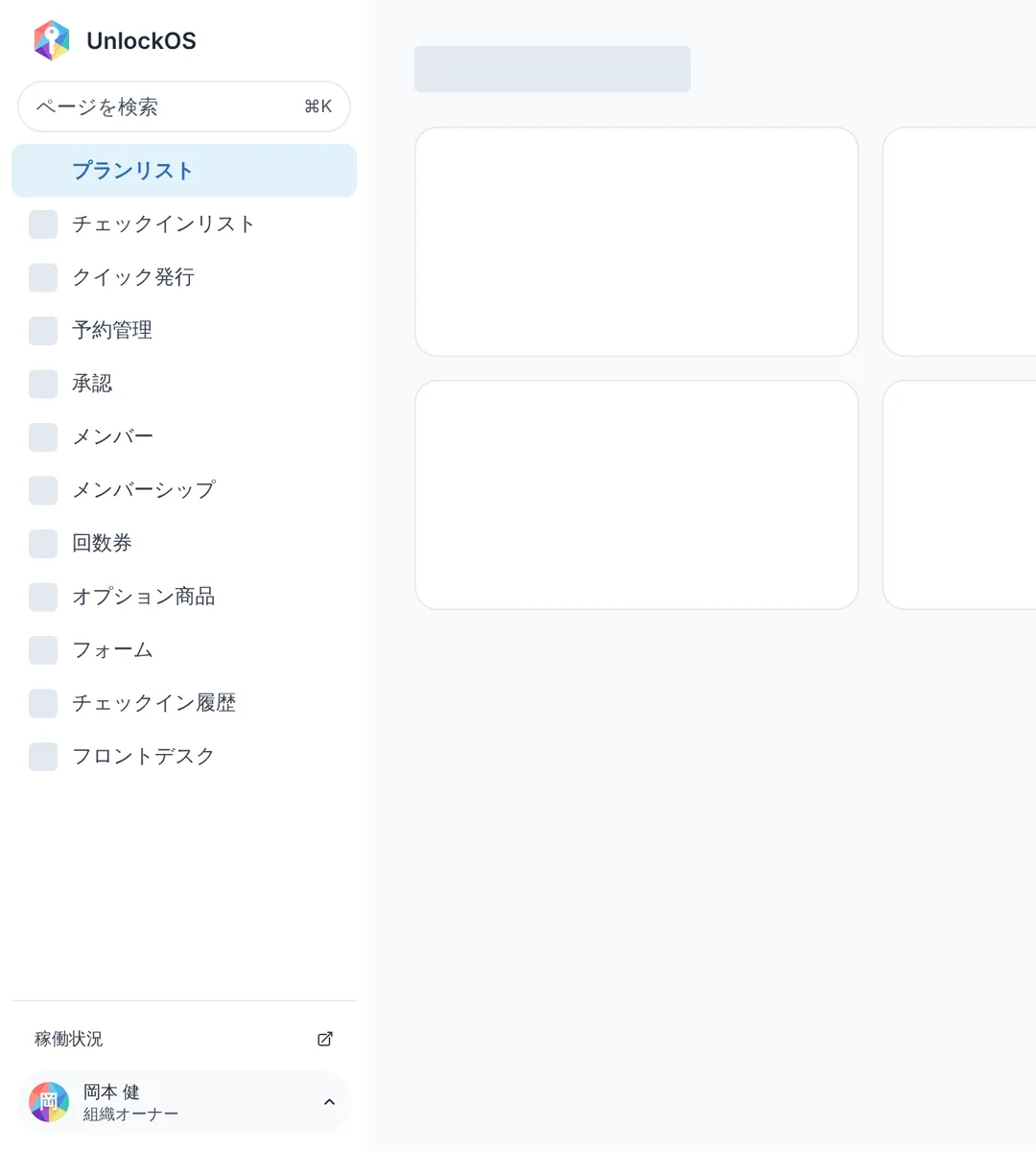
The bottom of the admin side menu has two rows: System status and Account.
- System status opens the UnlockOS status page (status.unlockos.io) in a new tab. When something looks wrong, you can check for an incident yourself.
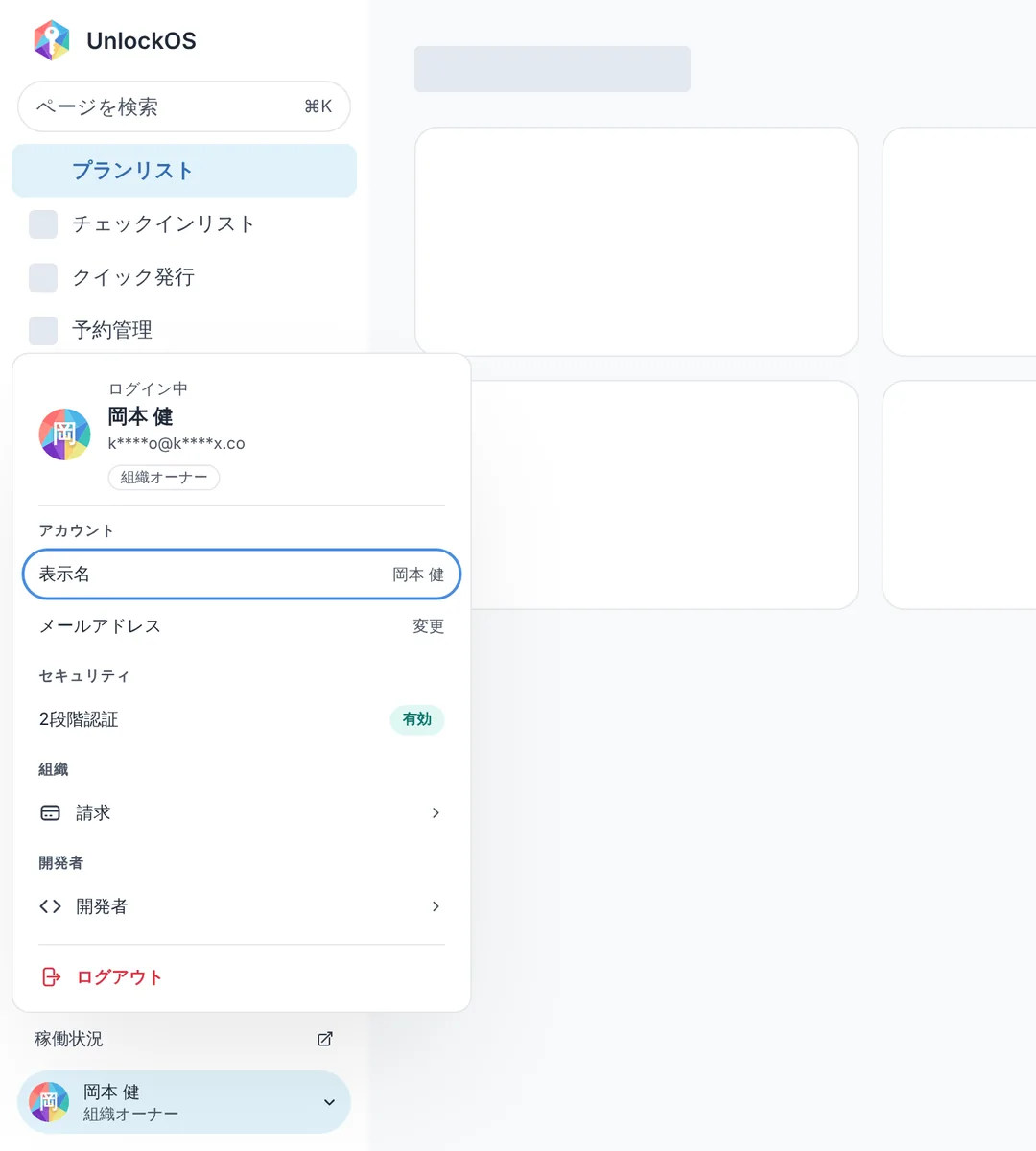
- Account gathers everything about the account you are signed in with. Press it to open the panel.
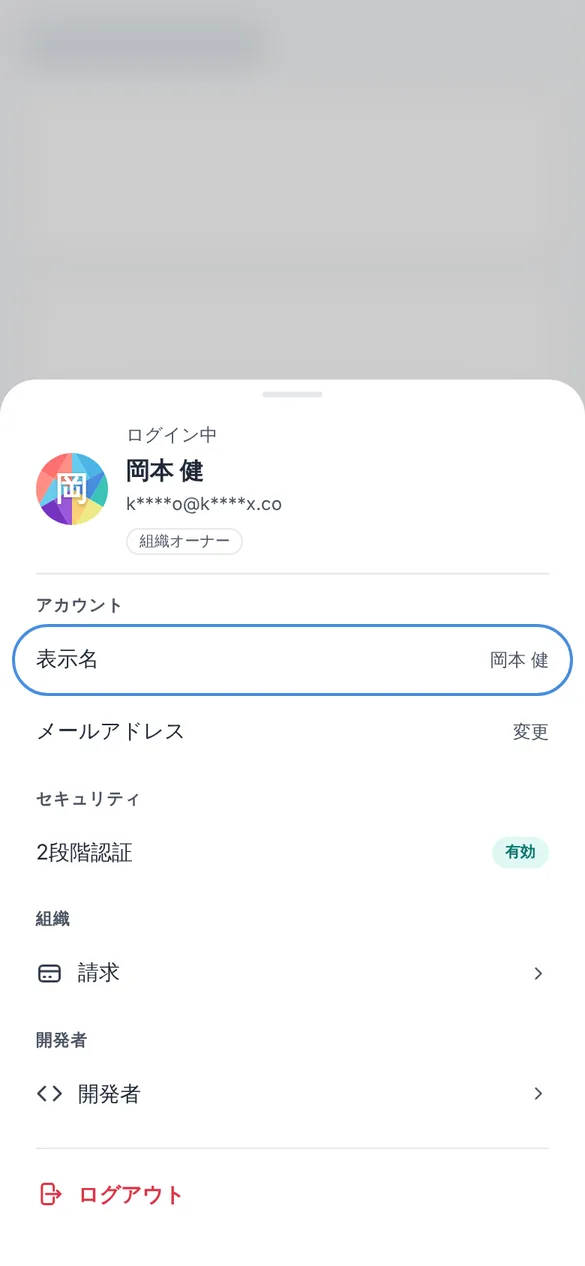
On a phone, the menu button at the bottom of the screen shows the same two cards. Pressing the account card opens the panel from the bottom of the screen.
What is in the account panel
The top of the panel shows the email address you are signed in with (partly masked) and the role you are currently using.
Account
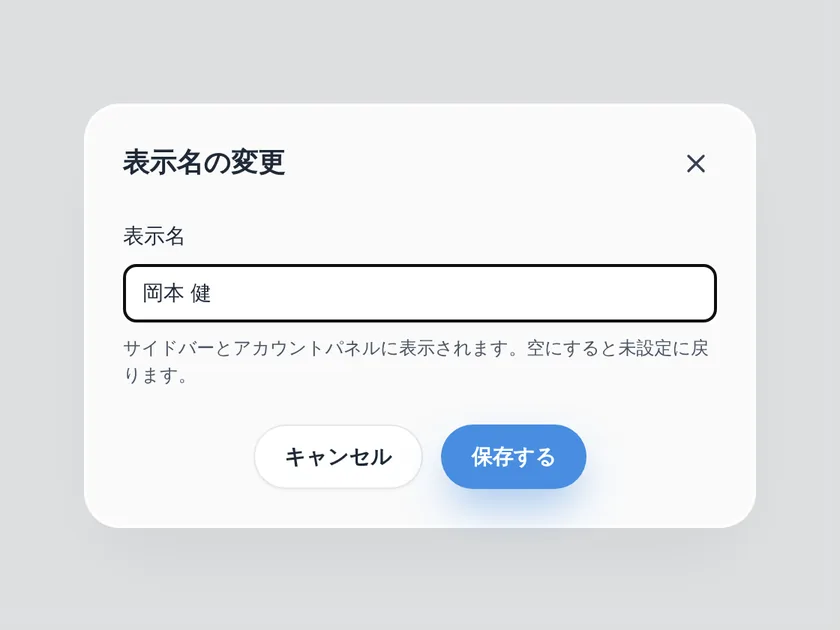
Display name sets the name shown in the sidebar and the panel. Clear it to go back to showing your email address. It is shown only to you, never to guests or other operators. If you were invited to a team with a name entered on the invitation, that name becomes your first display name when you accept (a name you already set yourself is kept).
Email address changes the address you sign in with. A confirmation email is sent to the new address; opening the link in it completes the change.
Security
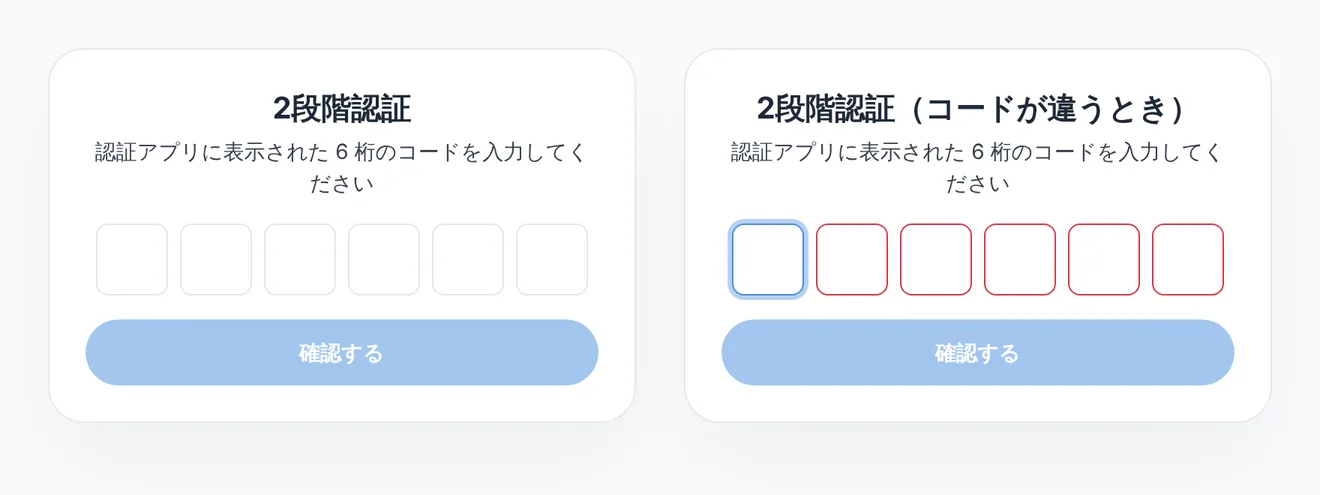
- Two-factor authentication lets you add or remove authenticator apps. The label on the right shows the current state.
- On means an authenticator app is registered
- Not set means none is registered yet. For Platform Admin accounts it is required, so the label is shown in red
- If the state could not be loaded, no label is shown. Press the row to check it on the settings screen
The authenticator code goes into the same six boxes as the one-time code at login. Entering the sixth digit starts the check automatically.
Organization
- Billing opens the organization's billing dashboard (balance, top-ups, usage). Billing belongs to the organization, so this heading is shown only to organization owners and Platform Admins. It does not appear while you are signed in with a facility role.
Developer
- Developer opens the API key and webhook management screen. It appears only when your role is allowed to use "Developer".
These two used to sit in the side menu itself. They are not part of day-to-day operations, so they moved into the account panel. The menu search (⌘K / Ctrl+K) still finds them.
Logout
Logout at the bottom of the panel opens a confirmation dialog. Confirming ends every session and returns you to the login screen.
Tips
- Press outside the panel, or press Esc, to close it
- The panel works with the keyboard alone: Tab moves between rows and Enter activates one
- When the panel closes, focus returns to the account row
FAQ
Q. Email change and two-factor authentication used to sit directly in the side menu. Where did they go?
A. They all moved into Account. The bottom of the side menu had grown tall enough to push the menu itself up. Nothing about the features themselves changed.
Q. "Billing" and "Developer" disappeared from the side menu
A. They moved under the Organization and Developer headings inside Account. The pages and their URLs are unchanged. If a heading is missing, your role does not have the permission or the feature is turned off.
Q. Can I set a display name?
A. Yes, from Display name in the account panel. The avatar is the UnlockOS logo's colour facets cropped to a circle, with the first letter of your display name (or your email address when none is set) on top.